

| If you have installed EndNote, but you don’t have the EndNote toolbar in Word, please check support.clarivate.com/Endnote |
You can use EndNote with Word to insert in-text citations and create reference lists or bibliographies automatically in your document in a referencing style of your choice. This is called Cite While You Write (CWYW).
Click the following headings for detailed instructions. Click the heading again to close it.
You will be returned to Word, where the in-text citation for the selected reference is inserted, and a reference list entry created at the end of the document.

Watch the video on inserting citations from EndNote to Word using the "Go to EndNote" feature: the process is the same for both Windows and Mac.
|
|
 |
The EndNote 21 Find & Insert My References will appear.
|
You will be returned to Word, where the in-text citation/s for the selected reference is inserted, and a reference list entry created at the end of the document. |
 |
Watch the following video about inserting citations from EndNote to Word using the "Insert Citation" feature: the process is the same for both Windows and Mac.
If the style you are required to use is a footnote style, such as Chicago A or AGLC4, you must first create a footnote in your document, before inserting a reference using one of the methods described above. EndNote will then format the in-text citation in the footnote and add the reference details to the bibliography.

Watch the following video on using footnotes with EndNote
Watch the following videos on inserting citations from EndNote to Word.
(The videos are based on the Windows platform, but the process is the same for both Windows and Mac)
If you need to edit a citation that you have inserted into your Word document, you MUST use the Edit and Manage Citations menu on the EndNote 21 toolbar in Word.
Click the following headings for detailed instructions. Click the heading again to close it.
There are various reasons that you may need to edit your in-text citations, for example:
Editing of citations must be done using the Edit & Manage Citation(s) command under the EndNote 21 tab in Word.

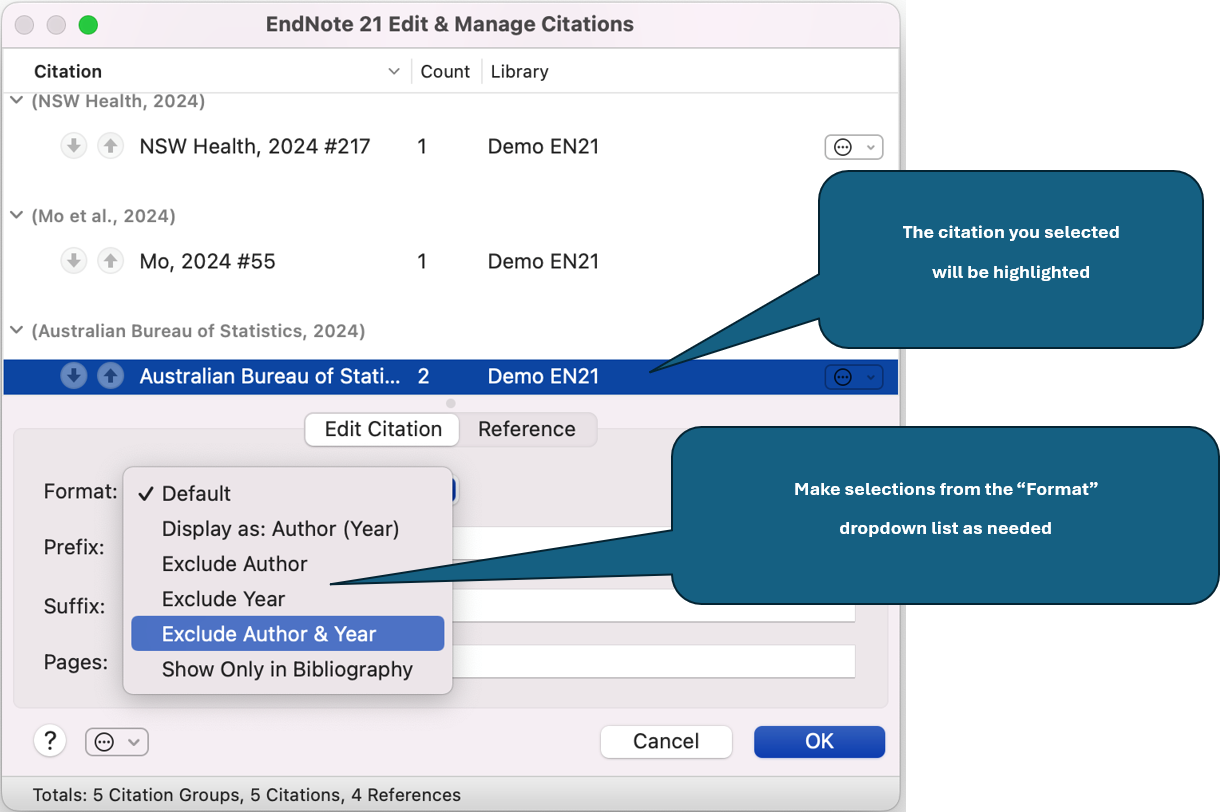
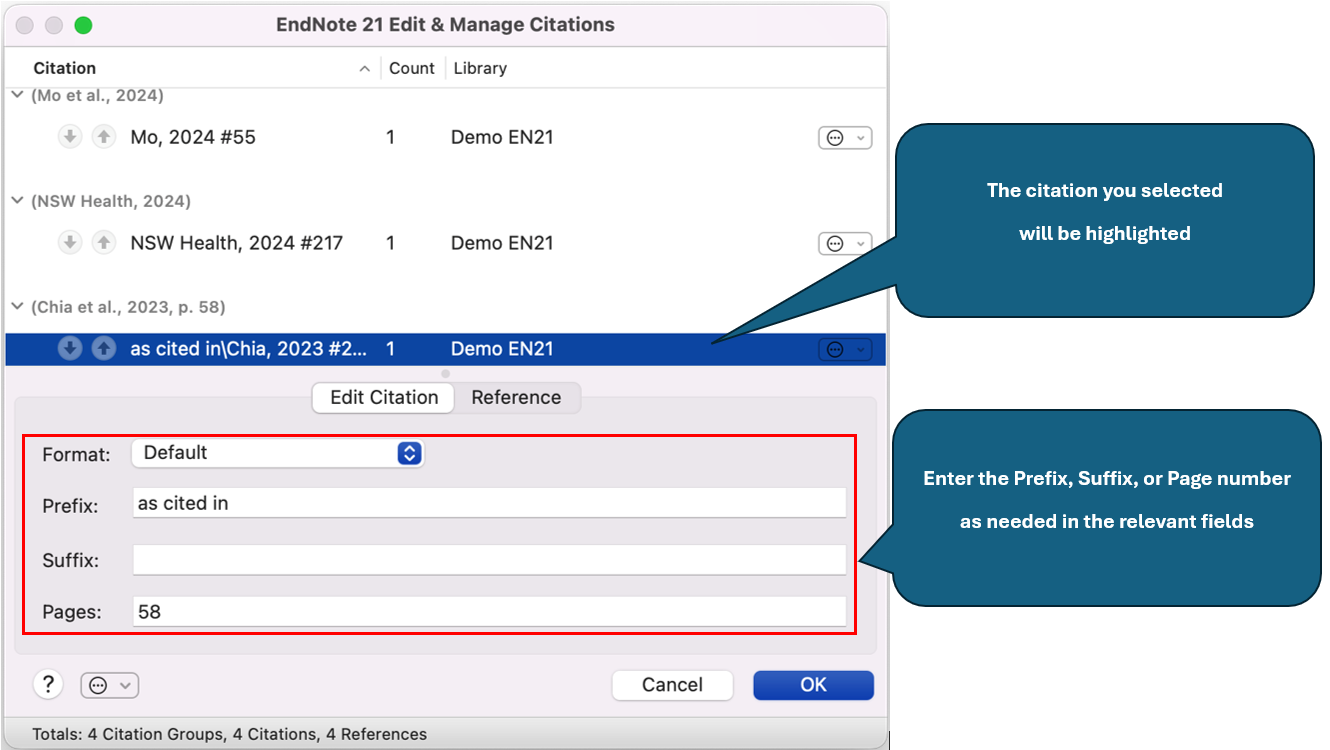
A Note about Page Numbers:
In EndNote 21, adding page numbers using the Edit & Manage Citation(s) command will work if you are using the APA 7th or MLA output styles. If you are using a different style, and the page numbers you type in here do not appear in your in-text citation, it means that the output style you are using is not configured to recognise them. In this case, you could put them in the Suffix field. However, if you use the Suffix field for page numbers, you must also enter the punctuation and spaces exactly as you want it to appear in the text, e.g. p. 313.
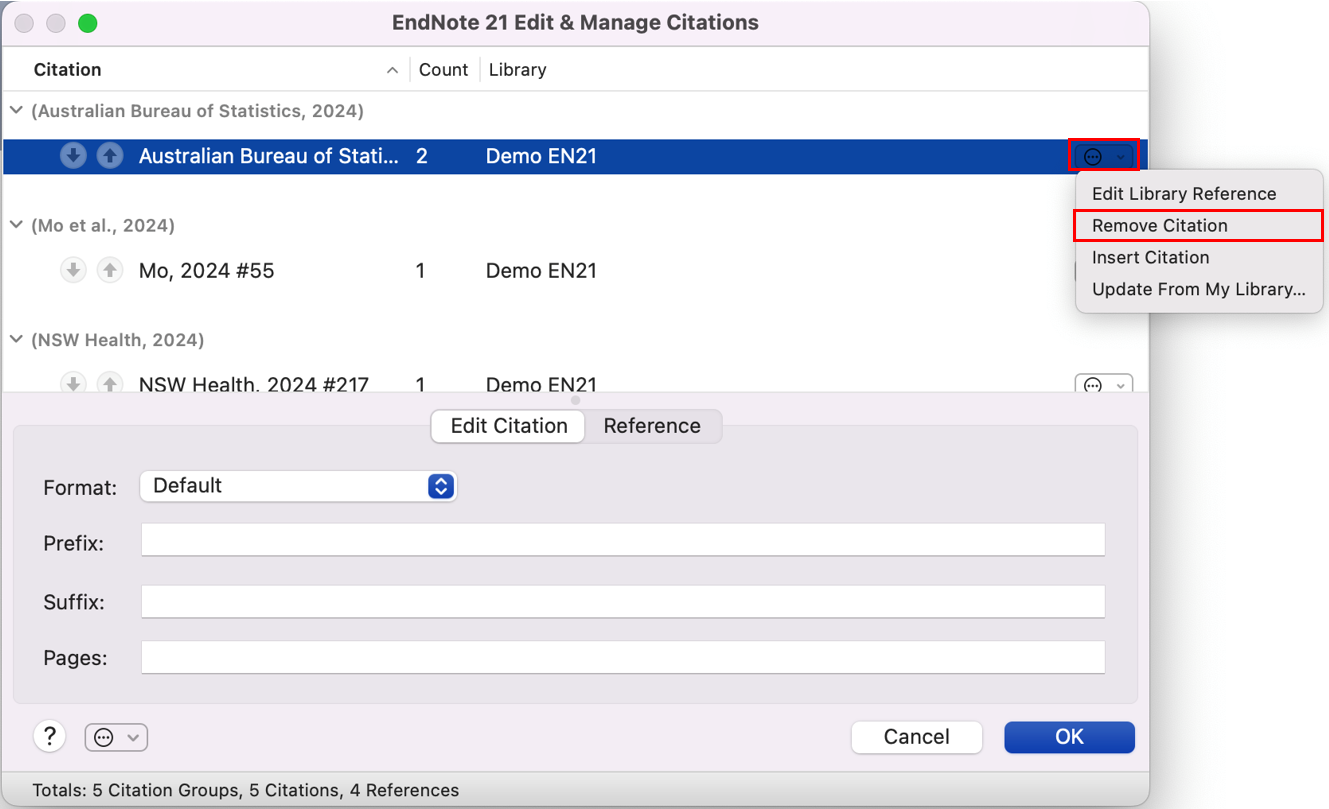
If you insert a citation in error, or in the wrong place, DO NOT USE the <Delete> or <Backspace> keys on the keyboard to remove it. Click within the in-text citation in your document (the in-text citation will turn grey), then click on the Edit & Manage Citation(s) command on the EndNote 21 toolbar. The EndNote 21 Edit & Manage Citations window will open, and the citation you selected will be highlighted. Click on the Edit Reference drop-down menu. Select Remove Citation, then OK
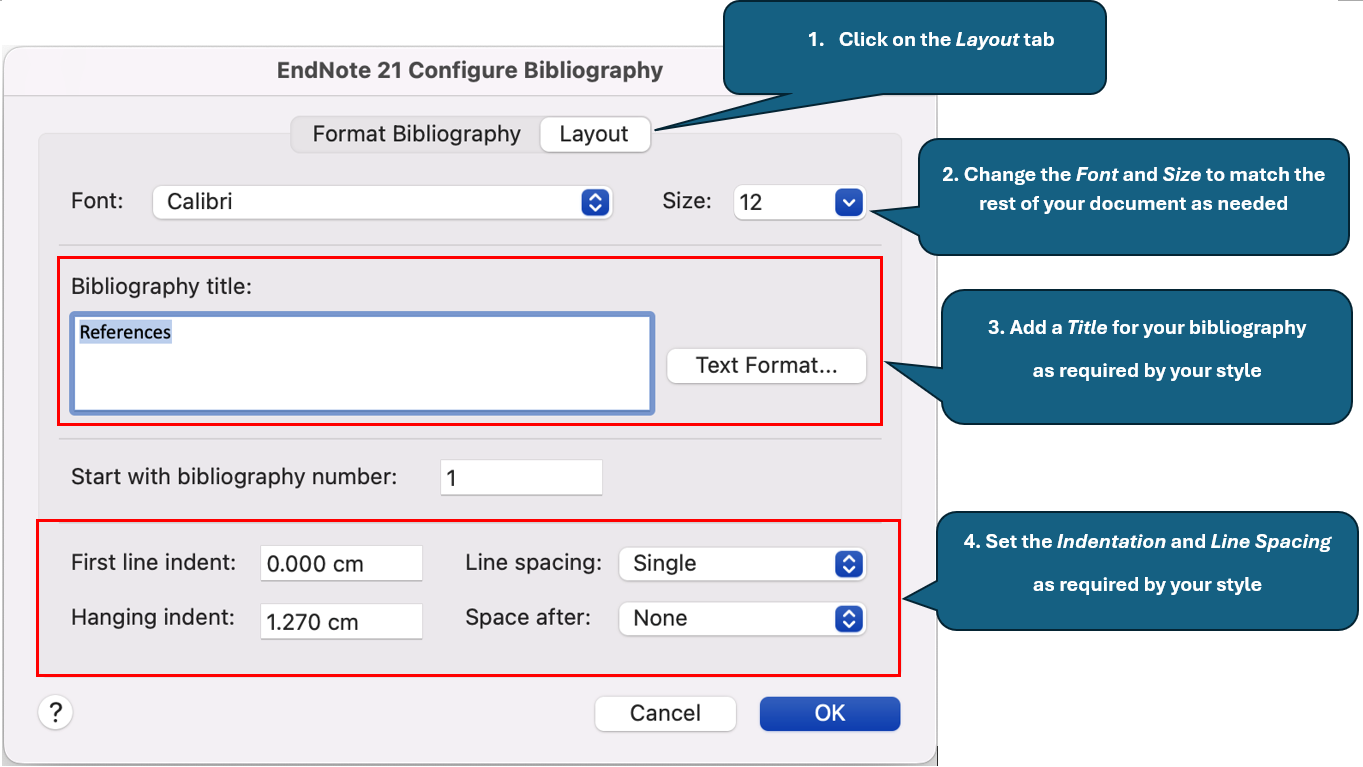
For changes to the font, size, indentation, or line spacing within and between entries in your reference list use the following instructions.

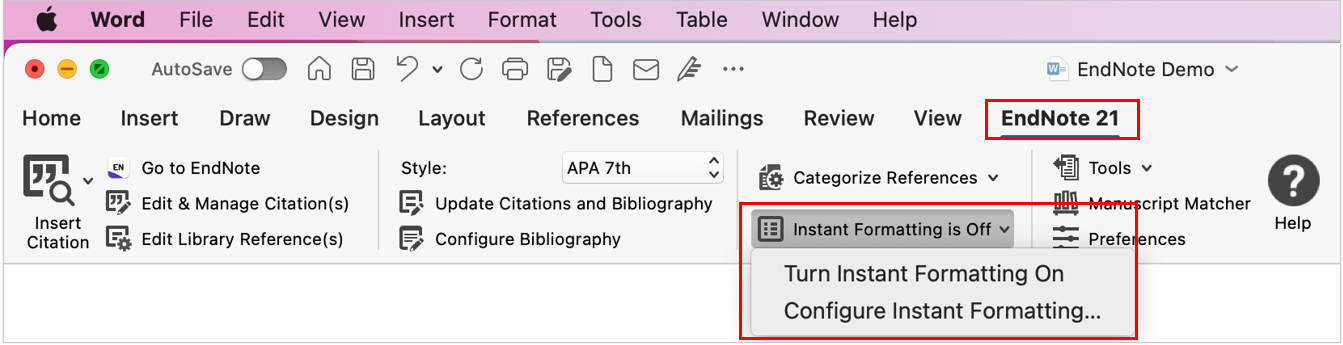
If references you insert from EndNote library into your Word document look like this: {Jones, 2015 #14} - where Jones = author; 2015 = year; and #14 = the EndNote record number – it means that EndNote’s Instant Formatting feature has been turned off.
To turn Instant Formatting back on in your Word document, select the EndNote 21 tab, click the dropdown arrow next to Instant Formatting is Off, and select Turn Instant Formatting On.
<
Watch the videos on editing EndNote citations and bibliography in Word.
(The videos are based on the Windows platform, but the process is the same for both Windows and Mac)
There may be times when you simply want to produce an independent or standalone list of references from your EndNote library (i.e. without the in-text citations). You can do so by using the Copy Formatted feature or the File Export feature.
Click the following headings for detailed instructions. Click the heading again to close it.
Watch a video on creating a standalone bibliography below.
(This video is based on the Windows platform, but the process is the same for both Windows and Mac)
Click the following headings for detailed instructions. Click the heading again to close it.

|
 |

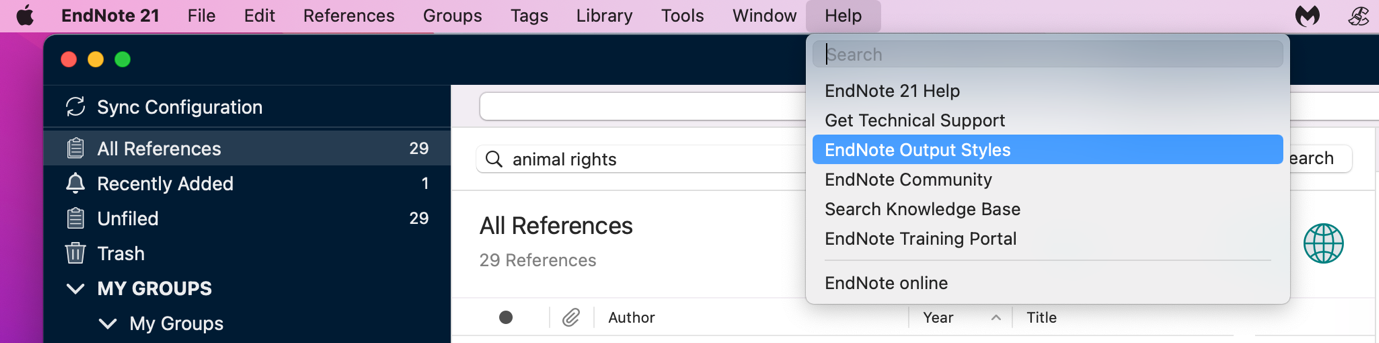
Listed below are additional or modified styles which are not pre-loaded in EndNote. These styles are available in the UON EndNote 21 package. However, if you are using a previous edition, you may download them here if needed.
To download the UON styles
To use the UON styles
UON additional or modified styles
Sometimes you may require an output style which is very similar to one of the standard styles in EndNote, but with some changes. In this case you can edit the style to modify it to your needs, and save the edited version as a new style.
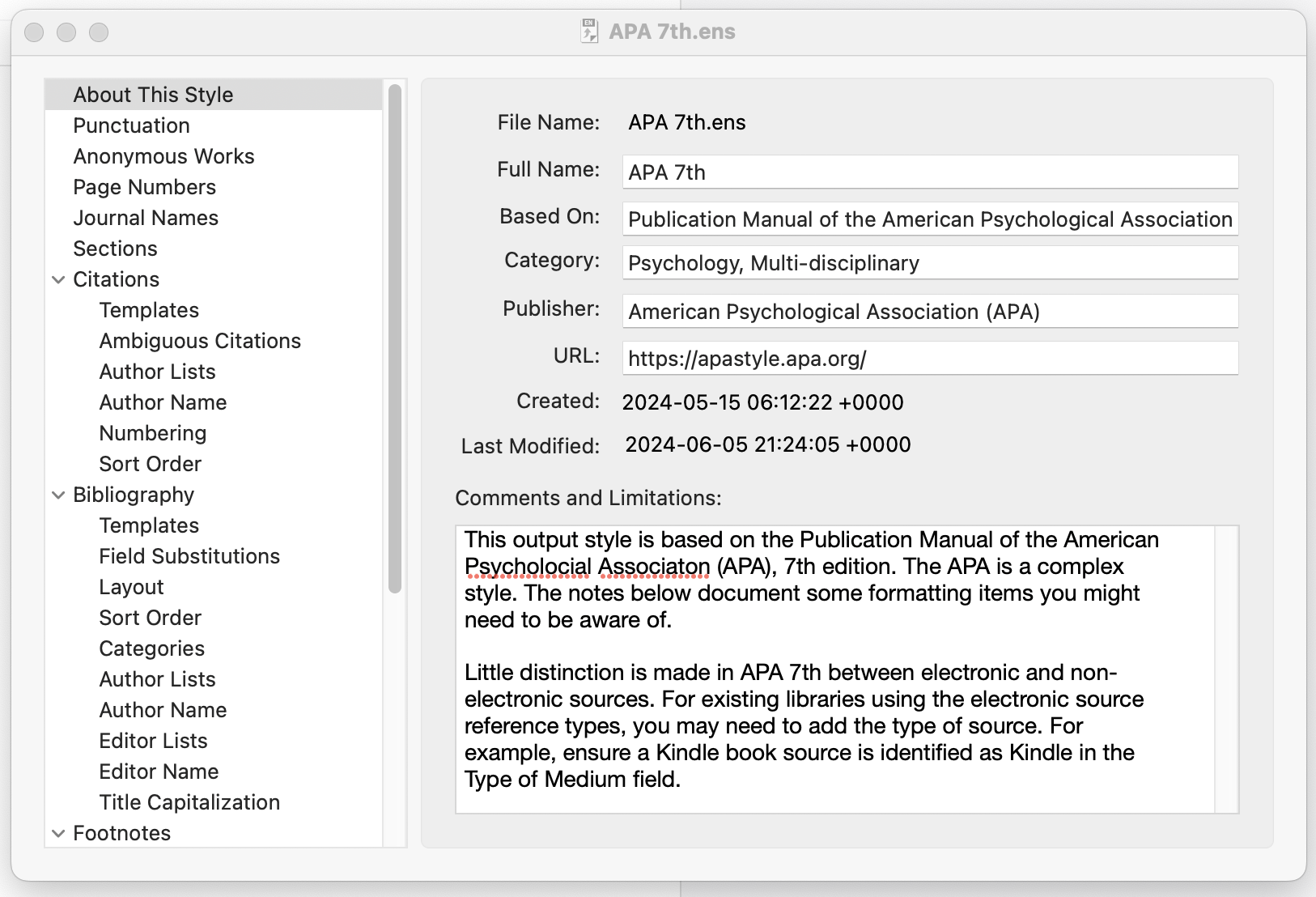
Some example scenarios are shown below.
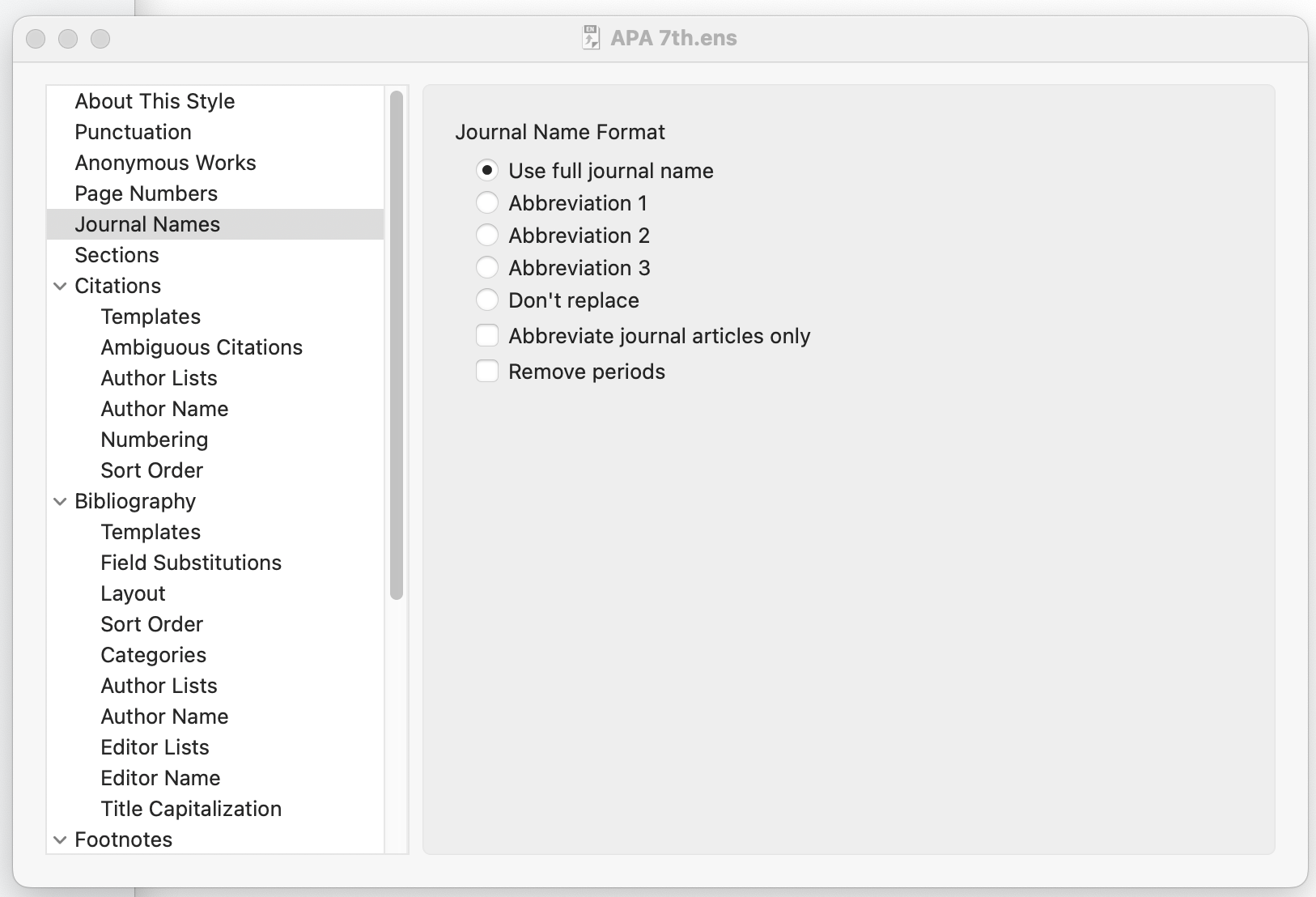
Example 1: In APA 7th style the Journal Titles are written in full, not abbreviated. If your style requires abbreviations to be used, you can make this change by selecting the abbreviation you want from the Journal Names section.
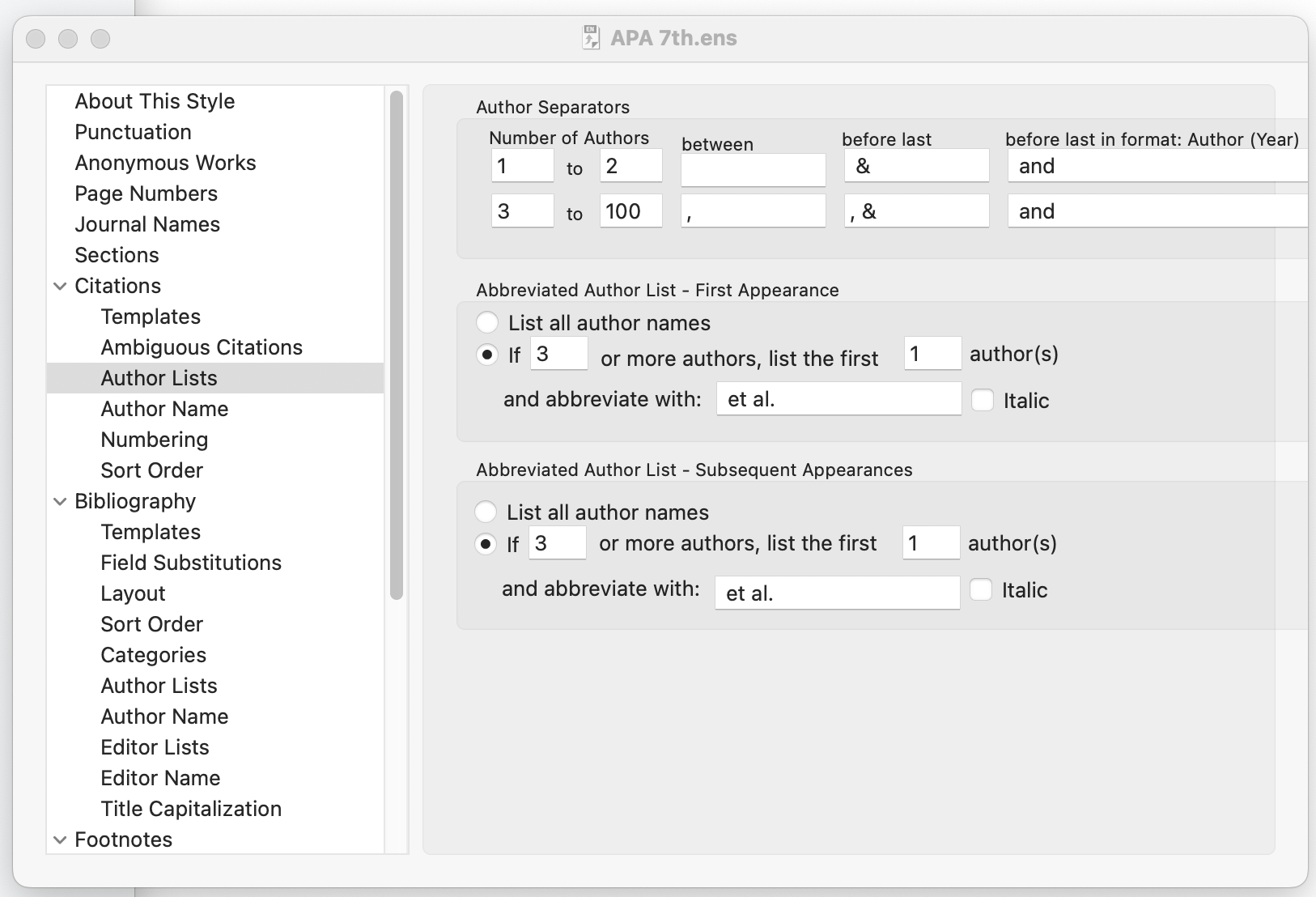
Example 2: In APA 7th style, if there are three or more authors we use (First author surname et al., Year) for the in-text citations. If your style has different conventions for dealing with multiple authors, you can make the required changes in the Citations > Author Lists section.
Example 3: In Vancouver style the titles left as entered, requiring you to remember to enter, or edit them, in 'sentence case', which means that only the first word (and any proper nouns) are capitalised. You have the option to modify the style so that titles are automatically converted to sentence case, but you must be wary of the fact that this will not capitalise proper nouns correctly. You also have the option to select headline style (every word in the title is capitalised) if your style requires this. Navigate to the Bibliography > Title Capitalization section.

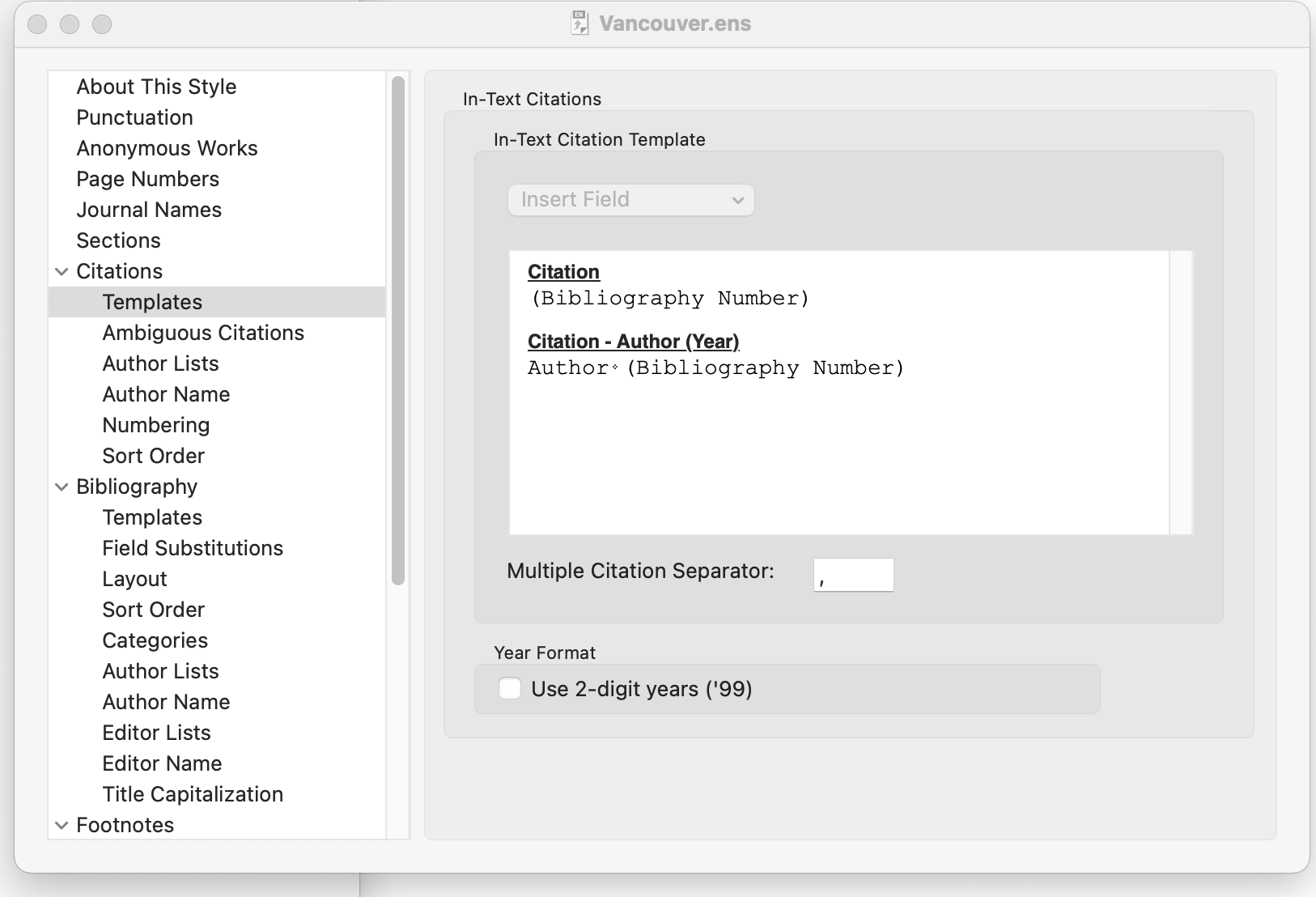
Example 4: In-text citations in Vancouver style use round brackets around the citation numbers e.g. (1). If your style requires square brackets e.g. [1], you can make this change in the Citations > Templates section.
To format your references correctly in the AGLC4 style, you will need to download and apply a modified output style.
You must download and save two separate files for the AGLC4 style to work in EndNote.
We recommend that you use the files created by UTS:
To install the files please follow the instructions on the UTS Install the AGLC style page.
Once you have installed the Legal Reference Types, downloaded the AGLC Reference Style, and selected AGLC4 (UTS) as your Output Style, you will be ready to use EndNote to format your references in the AGLC4 style.
Note: When you have added all your references to your bibliography you must divide your bibliography into the following categories:
A. Articles/Books/Reports
B. Cases
C. Legislation
D. Treaties
E. Others
Further information can be found on the UTS page of EndNote for Law: Referencing with EndNote using AGLC 4th edition.
*The AGLC4 (UTS) style has already been included in the EndNote 21 package on campus computers.
Watch the videos on selecting EndNote output styles in EndNote and Word.
(This video is based on the Windows platform, but the process is the same for both Windows and Mac)