Skip to Main Content

EndNote 21 for Mac: Getting Started

Using EndNote to manage your references and create in-text citations and reference list on a Mac computer

Banner image for getting started page

Getting Started

What is EndNote?

EndNote is a reference management program that can help you to:

  • Create a personal library to collect, store and manage references and full text documents
  • Search and retrieve references from databases including Google Scholar
  • Create in-text citations reference lists in your chosen referencing style automatically
  • Share references or entire library with others

EndNote is available for Windows and Mac, as well as an online version.

Watch the following video for an overview of EndNote for Mac.

Downloading and Installing EndNote for Mac

EndNote is supplied by the University for all current staff and students.

Please Note: 

  • Before upgrading, back up your EndNote libraries and the .DATA folder, and uninstall earlier versions of EndNote​.
  • To avoid compatibility issues, do not upgrade your EndNote or Mac OS without checking system requirements first.

Depending on the security settings of your computer, you may encounter error messages when trying to download or install the EndNote package. Click the link below for student reported error messages and their solutions.

Here are some of the screenshots of the error messages provided by our students and our suggested solutions. 

Also many thanks to those students who sent us the screenshots for helping other students.


Screenshots of Error Message Suggested Solutions

EndNote doesn't open.

When you first open EndNote after downloading, no windows will open. However, you can see the app open in the dock at the bottom and the EndNote menu in the ribbon at the top.

Click File > New to create a library, and you will see the application open in a window.

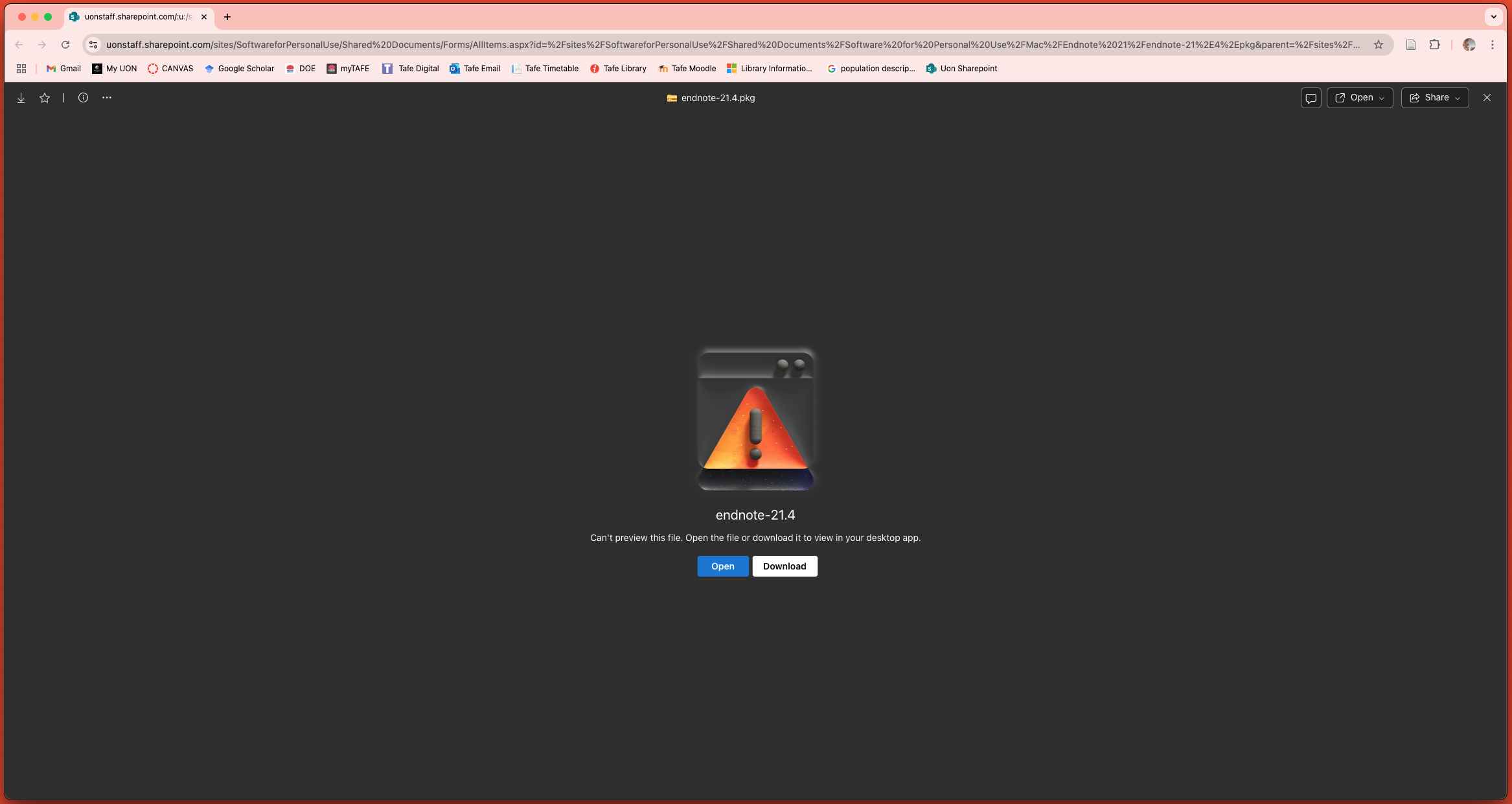
A screenshot of Mac EndNote Installation -error message of can not preview file

Error message:Can't preview this file

When you try to download the EndNote package, you might encounter this message.

Don't worry, this is normal.

Simply click the 'Download' button to proceed.

A screenshot of installing EndNote 21 on Mac error message


A screenshot of installing EndNote on Mac 2025


Error message:

“EndNote-21.4 pkg” can’t be opened because Apple cannot check it for malicious software. This software needs to be updated. Contact the developer for more information.


The security settings on most macOS may prevent you from opening and running your EndNote download. The default settings for these computers do not allow any files to be opened unless they have been downloaded from the App Store.

To override your security settings and open EndNote anyway, follow these 3 steps:

  1. Use Finder to locate the EndNote installer downloaded.
  2. Control-click (or right click) the EndNote icon, then choose Open from the shortcut menu.
  3. Click Open .


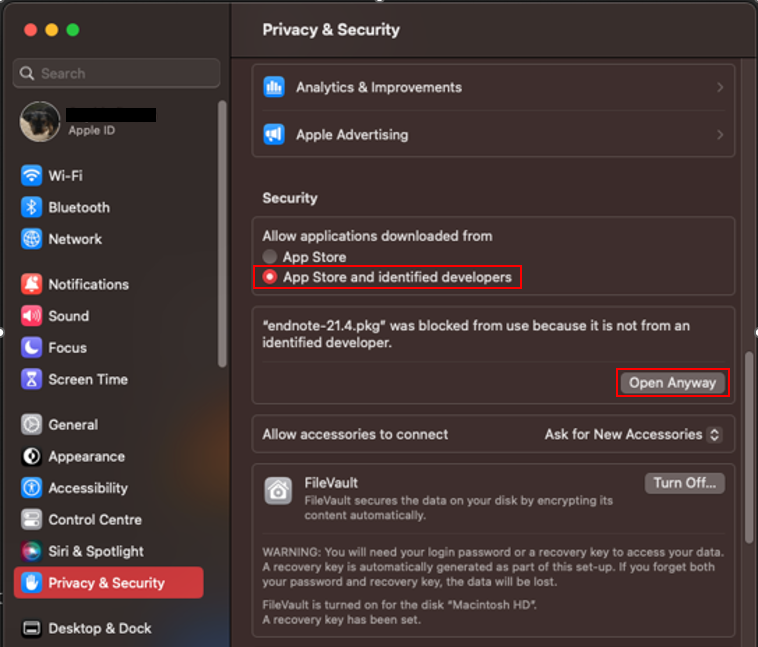
You can also grant an exception for EndNote to open by clicking the Open Anyway button in Privacy & Security settings. This button is available for about an hour after you try to open the app.

  1. On your Mac, choose Apple menu > System Settings, then click Privacy & Security in the sidebar.
  2. Go to Security, then choose Allow apps downloaded from: App Store and identified developers.
  3. Click the Open Anyway button.


Watch our video on How to download and install EndNote on a Mac laptop below.


Creating A New EndNote Library

After installing EndNote, your first task is to create an EndNote library to store your references and documents.

Click the following headings to see the details.

  1. Naming your library: Assign a unique and meaningful name to your EndNote library e.g. "John Citizen’s PhD Thesis on Autism 2025", instead of using the default My EndNote Library.
  2. Saving your library: Save your EndNote library to your computer’s hard drive. Avoid saving it in cloud-syncing folders or drives like OneDrive, iCloud, or SharePoint, as these locations can corrupt your library over time.
  3. Using a Single Library: While you can create multiple EndNote libraries, it’s best to keep all your references in one library and use Groups to organize them. There is no limit to the number of references you can store in an EndNote library.
  • Open EndNote then select File > New….  
  • The New Reference Library Window will appear.  
    • Give your library a unique and meaningful name, e.g. "John Citizen’s PhD Thesis on Autism 2025"
    • Select the folder to save your Library on your computer's hard drive (NOT on any cloud server)
    • Click Save.   

Create an EndNote Library on Mac

  • When you create an EndNote library, a Data Folder associated with your library is also created and saved in the same foler as your EndNote library. For example, if you create an EndNote library called Sam’s Library, a folder called Sam’s Library.Data will also be created.
  • This occurs automatically. Documents and images attached to EndNote records are stored in this Data folder. 
  • The Data folder is a critical part of your library.  Whenever you copy, move or backup a library, include not only the library (the .enl file), but also its associated Data folder (the .Data folder) and all of its contents; otherwise, you can lose the attached files and reference data. 

EndNote for Mac Data Folder

Watch the following video on how to create a new EndNote library on Mac.


EndNote and Cloud Servers  


EndNote is not designed for compatibility with cloud services such as OneDrive, SharePoint, Dropbox, Box Sync, Google Drive or iCloud. Saving a working EndNote library in cloud servers can lead to file corruption over time.

  • To avoid corrupting your EndNote Library, it is strongly recommended that you do not store your working Library on any cloud servers (including Dropbox, iCloud, OneDrive, SharePoint, and ownCloud).  
  • The reason that EndNote corrupts within cloud storage servers relates to the way multiple files are saved.  EndNote files must be saved in a set sequence; when cloud servers transfer data they may change the sequence of file saves, eventually leading to file corruption. 
  • You may save a backup copy or a compressed copy of your EndNote library in the cloud storage, but do not open or use the library directly from the cloud. 
  • If you ever need to use the backup copy of your EndNote library, download the copy of the files to your computer’s local hard drive, and then work from there.

  • You can sync your desktop library to EndNote online if needed. See details at the section on EndNote Online, Syncing & Sharing