EndNote provides the ability to attach files to records in your library.
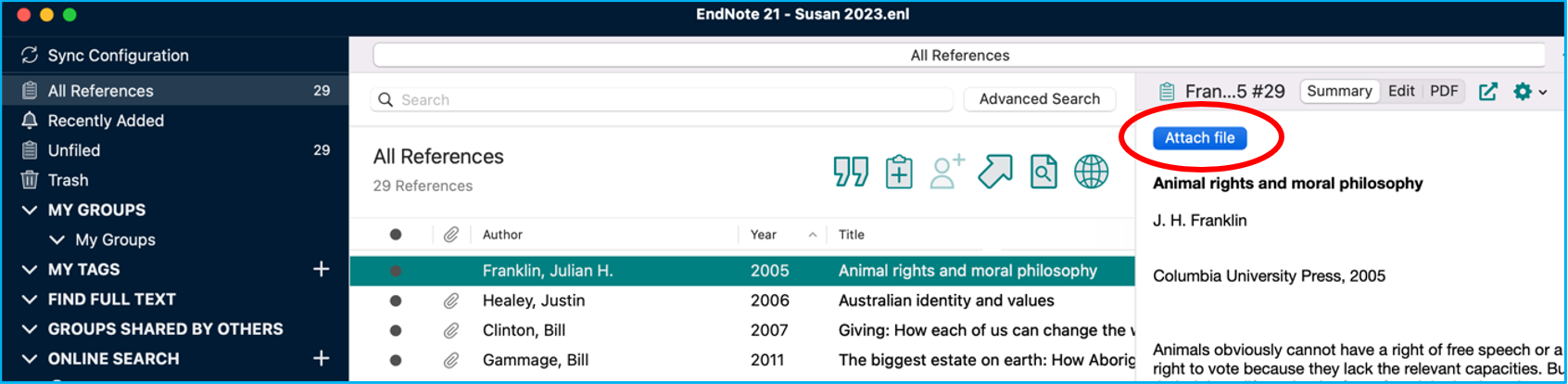
Importing from a database does not automatically transfer the full text of the article. Instead, you will need to attach the files automatically using the Find Full Text function (see the tab above) or attach the files manually using one of the following methods.
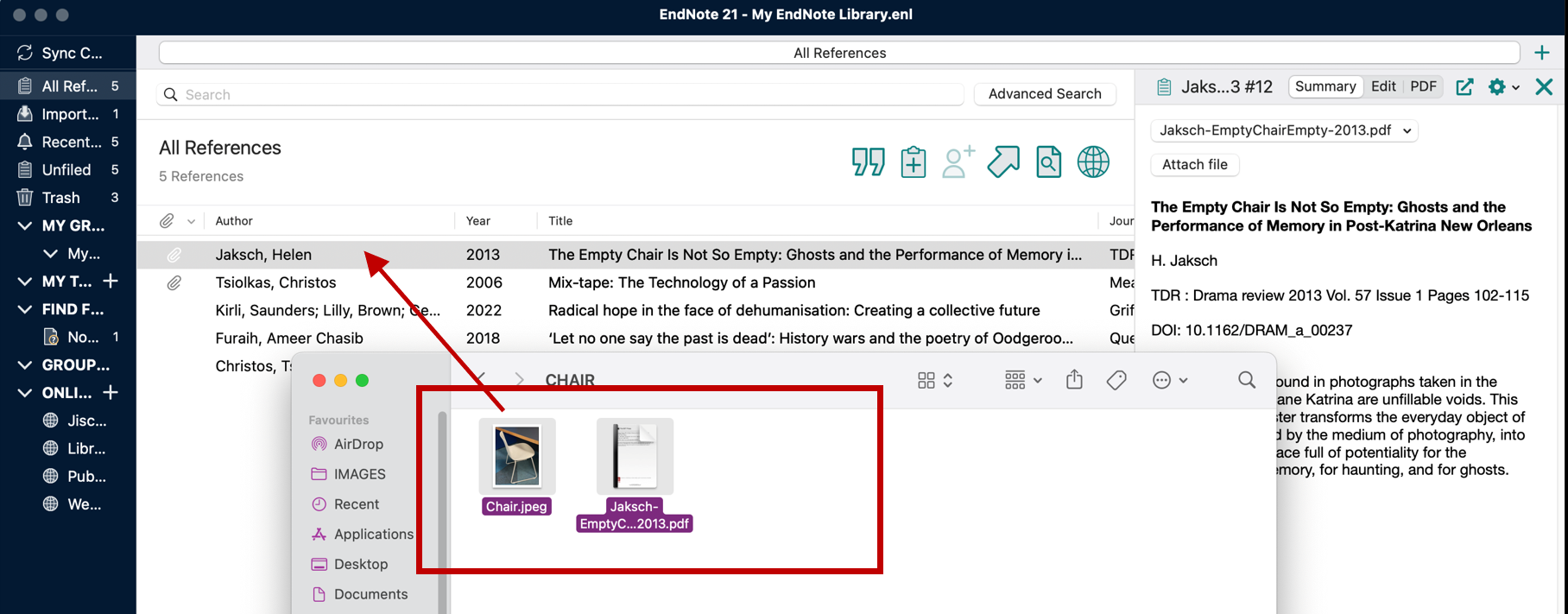
You can also attach files by dragging and dropping one or more files onto a record in either the Library Window or the Reference Window.
Watch the video on attaching files to EndNote records manually.
(This video is based on the Windows platform, but the process is the same for both Windows and Mac)
OpenURL Path: https://newcastle.alma.exlibrisgroup.com/view/uresolver/61UON_INST/openurl?
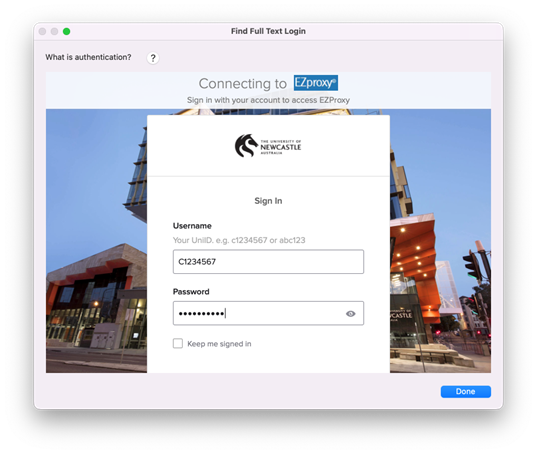
Authenticate with URL: http://ezproxy.newcastle.edu.au/login?url=
(include the “=” in the last URL)

(you can select up to 250 at a time).
|
 |
|
The Find Full Text Group Set will appear in the Groups Panel. This group set provides details of the number of:
|
 |
"Find Full Text" may not find all the pdf files due to various reasons.
You can always attach files manually if needed. See the Tab above for more details.
Watch the video on using the "Find Full Text" feature.
(This video is based on the Windows platform, but the process is the same for both Windows and Mac)
If you have a collection of PDF files that contain DOIs, you can create EndNote records and attach the PDFs to their respective records automatically.
Watch the video on adding references from PDF Files.
(This video is based on the Windows platform, but the process is the same for both Windows and Mac)
 (or click References | Find Full Text | Authenticate).