You can use Groups and Group Sets to manage a large library by breaking it down into more manageable parts.
You can create a new group from other groups using the Boolean Operators (And, Or, Not).
Smart groups use search criteria to dynamically update groups as existing records are edited or new records are added to the Library. Once a smart group is created it works in the background, automatically adding new records that match the smart group's criteria.

Watch the following video on Groups and Group Sets.
(This video is based on the Windows platform, but the process is the same for both Windows and Mac)
Tagging is a new feature in EndNote 21.
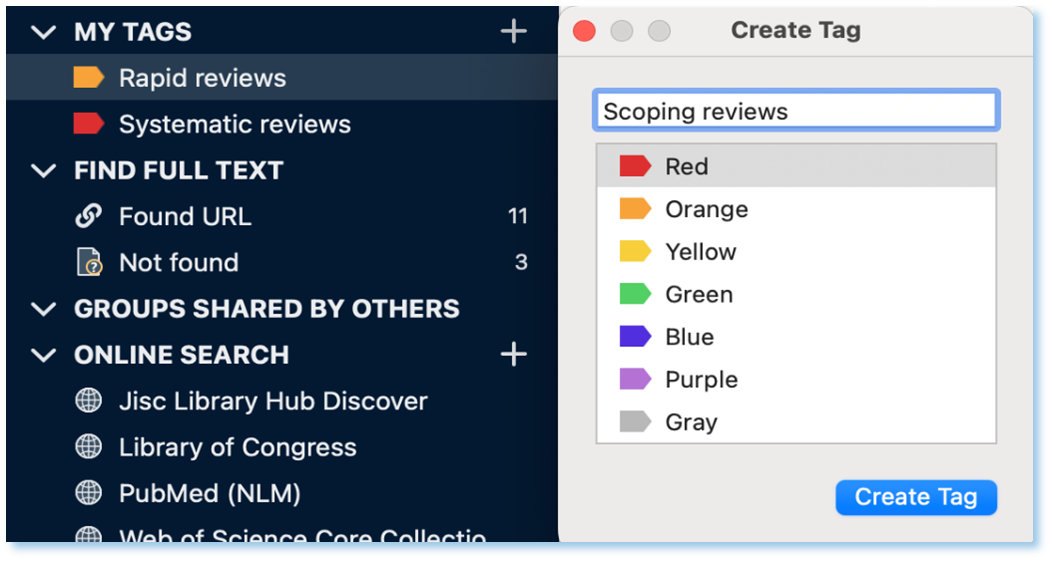
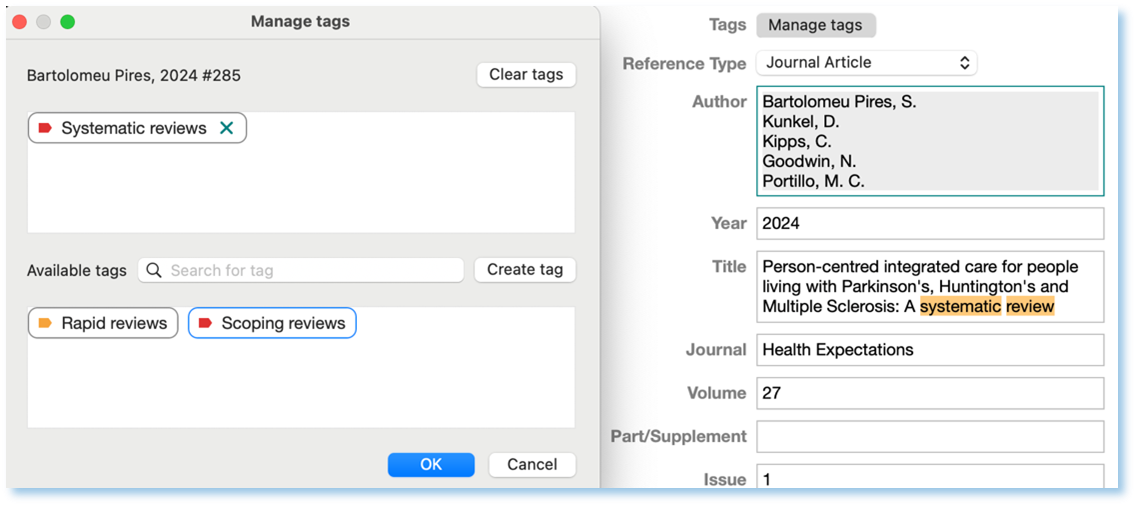
Alternatively, you can right click on a reference, then click Manage Tags.
You can also add tags to references by dragging and dropping references to the tag groups in the group panel.
Watch the video on Tagging EndNote Records.
(This video is based on the Windows platform, but the process is the same for both Windows and Mac)
As your Library grows, using the search tools will make it easier to locate the records you want to use.
To search the library, you can use the Simple Search box for quick results or the Advanced Search option for a more detailed search.

Watch the video on searching in your EndNote library.
(This video is based on the Windows platform, but the process is the same for both Windows and Mac)
As your Library expands, using the sorting tools will simplify the process of reviewing records for any errors.
To sort records, click on any of the column headings. For example, clicking on the Title column heading, records will be sorted A-Z by title. Click on the Title column heading again, records will be re-sorted Z-A. Note that initial articles such as “A,” “An,” or “The” are ignored during sorting.
Watch the following video on Sorting EndNote Records.
(This video is based on the Windows platform, but the process is the same for both Windows and Mac)
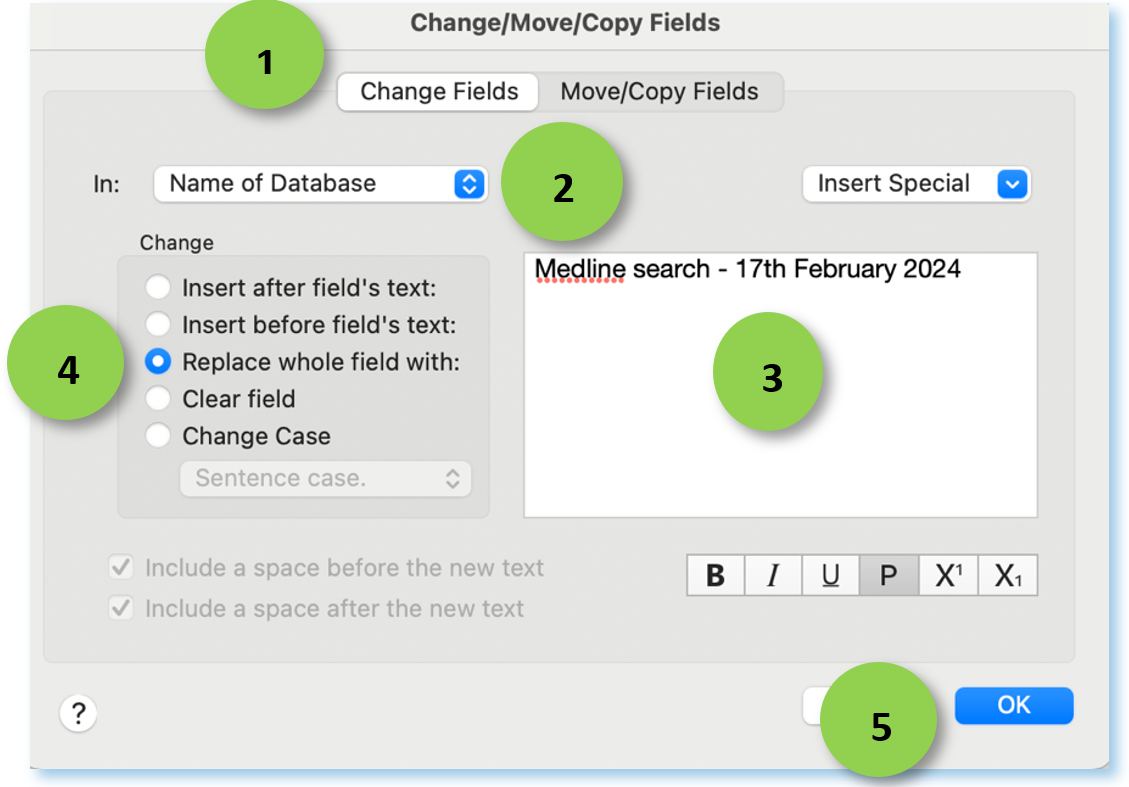
The global editing feature allows you to simultaneously add text to multiple records. This feature is particularly useful when you are transferring records from databases into EndNote and need to add text to records, such as keywords or details about the name of the database.
Select Library | Change/Move/Copy Fields. The Change/Move/Copy Fields Window will appear (see below).
|
|
|
It is essential to back up your EndNote library (and associated Data folder) in case disaster strikes. Create a backup copy whenever you make significant changes to your library – ensure you re-name the backup library (for example, add the date of backup to the file name).
It is essential to back up your EndNote library regularly, so that if something goes wrong you will always have a working copy of your library. Ensure you re-name the backup library (e.g., add the date of backup to the file name such as EN backup 2024-04-05).
There are a number of ways to create a backup:
Use Finder to navigate to where your files are stored. Copy your EndNote library (.enl file), AND its associated Data (.Data) folder, then Paste to a different folder on your computer, and/or to a USB drive or other portable storage device.
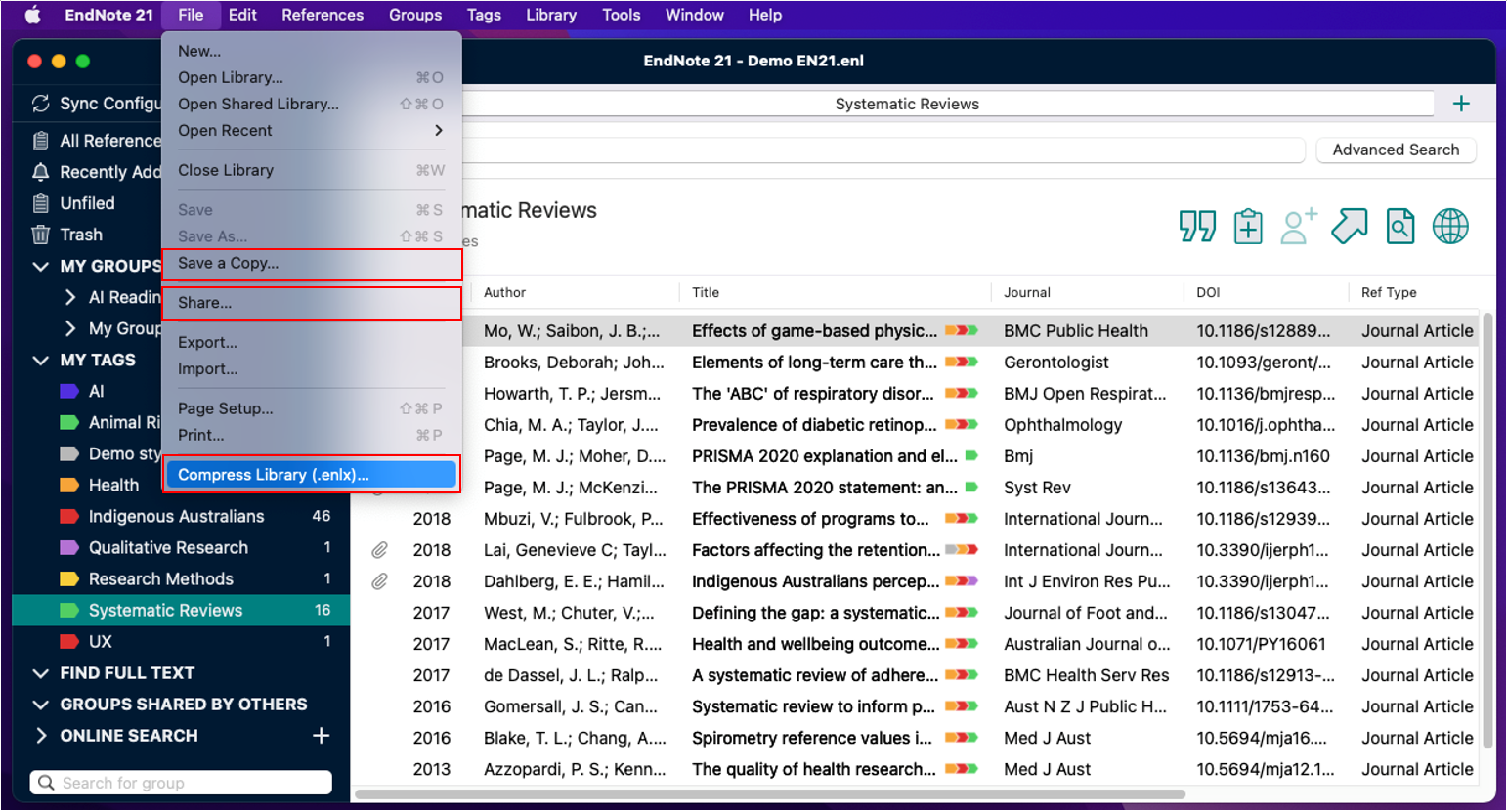
Open your EndNote library, select File | Compress Library (.enlx), and choose the option to Create | With File Attachments. This creates a single compressed file. Save this to a different folder on your computer, and/or to a USB drive or other portable storage device.
Use the File | Compress Library (.enlx) | Create & Email command to send a copy of your EndNote library via email to yourself or a colleague (be aware of the size limit of the email system).
Use the File | Save a Copy… command to save an exact copy of the library to a different folder on your computer, and/or to a USB drive or other portable storage device. This will save a copy of your library, plus its associated Data folder.
|
Please Note
|
It is possible to reconstruct at least part of your EndNote Library if you have:
NOTE: All of the methods described below will not reconstruct the EndNote Library exactly as the original - a good backup schedule is essential for all of your research files.
The Library will now open and a new DATA folder created. Using this method:
It is possible to create an EndNote library with records from references included in a Word document, if those references were inserted via EndNote. This is a very useful way of retrieving records if your EndNote Library and the .data folder are both lost. This process is also useful if a collaborator has sent you a document with many references that you would like included in your own EndNote Library.
This method creates EndNote records that include just the bibliographic data, as included in the Reference List entries. Additional fields, such as abstracts, plus notes, and attachments will not be created.
Depending on your situation, you may consider the following solutions:
To repair a damaged EndNote library
Covidence is a web-based tool that streamlines the production of systematic reviews. It supports title and abstract, and full-text screening, risk of bias assessment, the extraction of study characteristics and outcomes, and the export of data and references.
Using EndNote you can collect references from databases and upload them into Covidence for title and abstract screening. You can also find and attach PDF files to the records in EndNote and upload the full text PDF files into Covidence for full text screening.
Watch the following videos on how to import references and full text PDF files into Covidence.
For more details see the library’s guide on Covidence.
|
How to import references |
How to add full text articles |
|
Export studies missing full text |
Introduction to Covidencet |