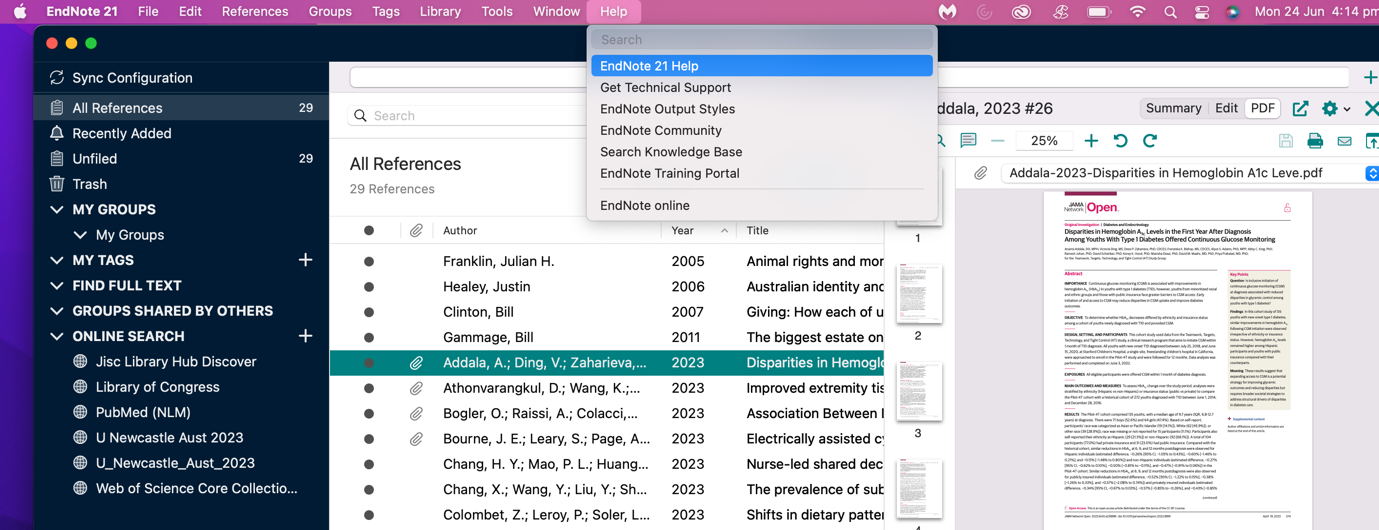
Tip: Press the Command + F on a Mac keyboard to find the keyword on screen quickly.
The security settings on most macOS may prevent you from opening your EndNote download. The default settings for these computers do not allow any files to be opened unless they have been downloaded from the App Store.
To override your security settings and open EndNote anyway, follow these 3 steps:
You can also grant an exception for EndNote to open by clicking the Open Anyway button in Privacy & Security settings. This button is available for about an hour after you try to open the app.
EndNote should now be opening without the error message.
Watch our video on Installing EndNote on Mac Laptops for details

Some students reported the following error message when trying to install EndNote on their Mac: “Word can’t load an add-in. Your add-in isn't compatible with this version of word." The workaround for this is to set Word to open with Rosetta.
EndNote 21 CWYW is compatible with MS Office 365 / MS Word 365 locally installed desktop version only. See more details at Macintosh compatibility and system requirements
If you accidentally delete your EndNote library (the .enl file) but still have the associated .Data folder, you may recover your deleted library from the Data folder by using Notepad:
EndNote is not designed for compatibility with cloud service such as OneDrive, SharePoint, Dropbox, Box Sync, Google Drive or iCloud. Saving a working EndNote library in cloud servers can lead to file corruption over time. That is one of the common reasons why the library may get damaged frequently.
You may save a backup copy or a compressed copy of your EndNote Library in the cloud storage, but do not open or use the Library directly from the cloud.
If you ever need to use the backup copy of your EndNote library, download the copy of the files to your computer’s local hard drive, and then work from there.
See more at the EndNote and Cloud Services page.
See the Guidelines for Entering Records for more details
Syncing issues can arise from a variety of factors, but a good initial troubleshooting step is to perform a configuration reset.
To reset your syncing configuration:
See more at the Syncing your library page.
On some Macs, attempting to use the EndNote Cite While You Write tools may result in returning to the EndNote library, or an Error message. The reason is that some macOS includes new Security & Privacy functions which can prevent EndNote from being able to correctly automate.
To correctly set these options:
With this automation turned off, the Cite While You Write functions will not work.
This may happen due to several reasons. Please read the instructions for restoring a missing EndNote toolbar on the EndNote Support website.
If you get a "cannot edit range" or "A COM exception has occurred" error message when using EndNote in Word, it is likely due to the installation of the Mendeley plug-in in Word. You need to remove the Mendeley plug-in before using EndNote with Word. See details at the EndNote Support website.
If your in text citations are displaying in {curly brackets} and your reference list has disappeared, it means that the EndNote Instant Formatting function is turned off and Word has stopped formatting the EndNote codes in your document.
Your in text citations should now be formatted correctly in your chosen referencing style.
EndNote is correctly conforming to the APA 7th manual to use initials in the in-text reference if there is more than one author with the same last name in your document.
However, if you still want to remove the author's initials, follow the steps below.

You can create your bibliography categories and assign the relevant references to them. EndNote will create the bibliography with the references under each of the categories.
Your bibliography will be formatted under the categories
You can edit your categories such as delete or rename a category, re-order the categories, or move references (using drag and drop) from one category to another.
To combine several chapters into a thesis with a single bibliography at the end:
Remember to use only one EndNote library for all of your chapters, or you will have issues when you try to combine them later.
You may get error messages when you try to use EndNote with Track Changes visible.
To turn off the visibility of the Track Changes:
EndNote should now be working again without the error messages.
See more details at the Issues with Track Changes from the EndNote help site.