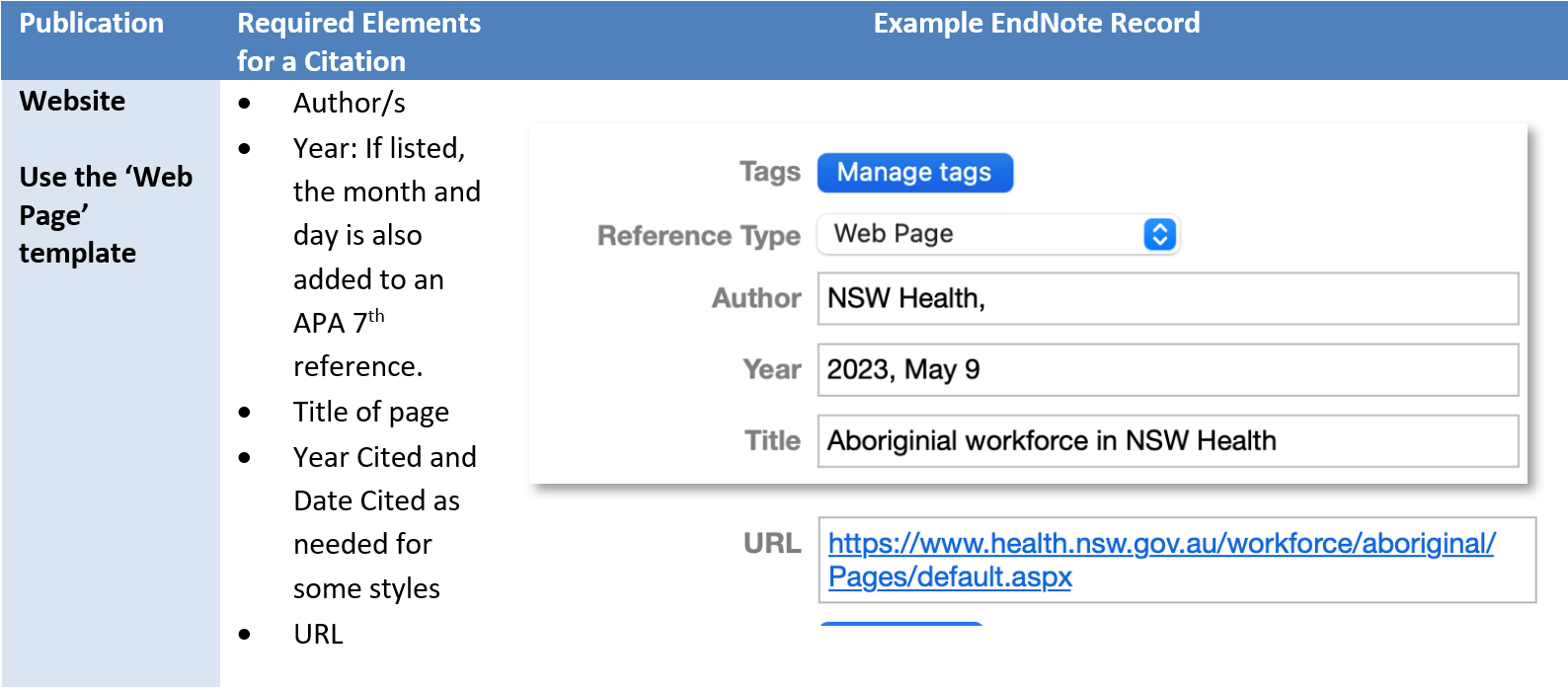
Family name, First name Second name
For maximum flexibility enter whole names whenever possible. Some reference style, such as Chicago, require the full author name. If a style requires abbreviated first and middle names, Endnote will adjust this automatically.
For example, Henskens, Frans A.
Family name, First name Second name, Title. For example, Smith, Alfred, Jnr
University of Newcastle,, School of Law
This will open a New Reference edit window.
|
 |
Most journal databases and library catalogues include a download option that allows the export of records from the database to an EndNote Library. This is called ‘direct export’.
Direct export generally involves the following 3 steps:
If an EndNote Library is open, records will be imported there. Otherwise, navigate to and open the EndNote library.
Direct export differs slightly depending on the database and web browser used to search the database. Check the exact instructions on using direct export for specific databases below.
|
Some databases do not provide a direct export option - instead you may need to use EndNote's Import process. This process uses import filters - most filters are supplied with EndNote, or can be downloaded from the EndNote Import Filters site. |
|
A Word of Caution about Direct Exporting and Importing Although importing records can save you a lot of time, it is important to understand that it is not always 100% accurate. This means that it is essential to carefully check the records imported and correct any mistakes or inaccuracies. Mistakes in the records in your library will translate into mistakes in your in-text citations and reference list entries. Preview how new records will display in your favourite reference style by using the Summary tab. See the Quality Control tab above for more details. |
The process of direct export records from a database into EndNote differs slightly for each database and web browser used. Follow the instructions below for each database.

EndNote will open and prompt you to select the EndNote library to import your results.
Watch the video on direct export from Library Search into EndNote
(This video is based on the Windows platform, but the process is the same for both Windows and Mac.)
The Online Search Mode allows you to connect to library catalogues (including the University of Newcastle library catalogue), PubMed, and Web of Science to search and download records, all from within your EndNote library.
Note: Whilst the Online Search Mode includes links for many journal databases, PubMed and Web of Science are the only databases searchable from within EndNote. Use the Direct Export option for the other University subscribed databases.
To use the Online Search Mode:
1. Open the Online Search dropdown menu from the left of the EndNote Library Window.
2. Select the connection to search, or click more... to view the complete list of catalogues and databases.
3. Enter your search terms, then click Search. The results will display in the Retrieve results box below.
4. Select all or individual records (hold the <command⌘> key while selecting), then click the plus sign ( ) to add the selected references to your library
5. When you have finished searching, click All References to return to your EndNote library.

|
A Word of Caution about Online Search Although importing records can save you a lot of time, it is important to understand that it is not always 100% accurate. This means that it is essential to carefully check the records imported and correct any mistakes or inaccuracies. Mistakes in the records in your library will translate into mistakes in your in-text citations and reference list entries. Preview how new records will display in your favourite reference style by using the Summary tab. See the Quality Control tab above for more details. |
Watch the following video on Searching PubMed in EndNote: the process is the same for both Windows and Mac.
Watch the following video on Searching PubMed in EndNote
(This video is based on the Windows platform, but the process is the same for both Windows and Mac.)


After the import process has finished, you will see the references imported in your EndNote library.

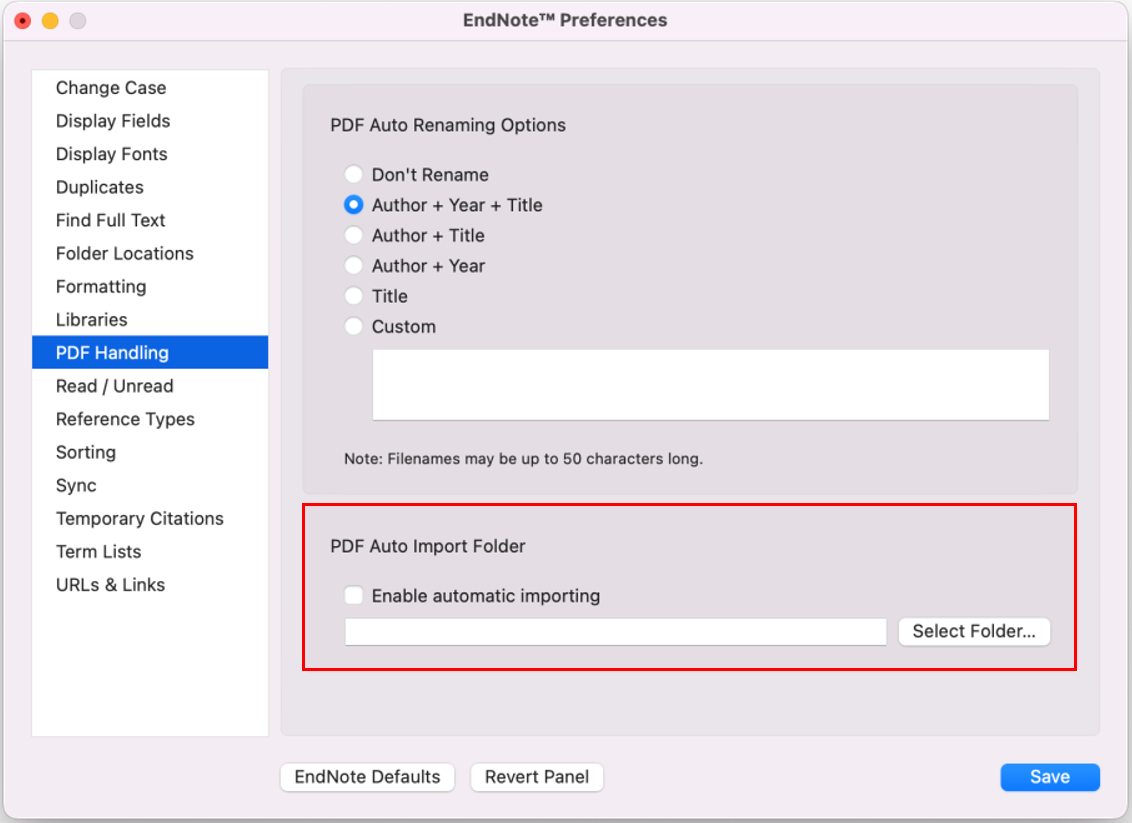
You can set PDF Handling options to automatically rename your PDF files imported or attached.
You can also set up an auto-import folder to automatically import PDF files saved in that folder if you wish.
Watch the video on adding references from PDF Files
(This video is based on the Windows platform, but the process is the same for both Windows and Mac)
Although adding records automatically can save you time, it is important to understand that it is not always 100% accurate. This means that it is essential to carefully check the records imported and correct any mistakes or inaccuracies.
Mistakes in the records in your library will translate into mistakes in your in-text citations and reference list entries. It is vital to make sure that all the data in your EndNote library is accurate and free from any mistakes.
To review a record, double-click it to open the Tabs panel, if it isn't already open.


EndNote identifies a record as a duplicate if two or more records are assigned the same reference type (such as Journal Article), and include the same information in the Author, Year and Title fields.
To identify and delete duplicate records:

Note: If you have cited records from this Library in a Word document, check to ensure you are not deleting the version of the record you have cited.
|
EndNote maintains three Term Lists - one for Authors, one for Journals, and one for Keywords.
There are two situations when you might need to interact with the Journals Term List.


Watch the video on removing duplicate records from EndNote.
(This video is based on the Windows platform, but the process is the same for both Windows and Mac)